
The input table separates photo mode from pause; capture details explain where the PNG goes.
Use the photo input rather than the pause input
A custom profile can override the keyboard defaults. Check Game → Controls mappings if Tab produces a different action. Insert or R3 + L2 opens the port’s own menu; its Image tab is a graphics-control page, not the game’s photo-mode editor.
Default photo-mode entry points
On a narrow screen, scroll the table horizontally to read every column.
| Device | Photo mode | Pause / distinction |
|---|---|---|
| Keyboard | Tab | Backspace is the right-touchpad/pause mapping |
| DualSense | Left touchpad click | Right touchpad click is separate; PS4-style touchpad behavior |
| Controller without a touchpad | L1 + View | View alone opens pause |
Source: Project README · Keyboard and controller controls

Take the port screenshot and find its PNG
Open the game’s photo mode when you want to compose a view
Use the relevant input above. Photo-mode entry and saving an image are separate actions; the F12 command is the documented capture path.
Press F12 for a port capture
2.3.0 adds an F12 PNG capture of the game image without the port’s overlay. That omission is specific to the port overlay; it does not establish how every third-party overlay or operating-system capture behaves.
Open the screenshot directory
Use Graphics → Screenshots in the launcher, or open
screenshotsunder the selected Saves root. With the default Windows root, that is the program’suser\screenshots\directory.Inspect the saved image
Open the new PNG and check the expected scene, framing and overlay omission. Confirm a real file was saved before treating an on-screen action as a successful capture.
Sources: 2.3.0 release · 15 October 2026 UTC · Project README · Keyboard and controller controls
Platform, display and capture-method limits
The 2.3.0 release records in-game F12 validation on an RX 6700 XT under Windows 11 at 1080p. It explicitly leaves HDR-display captures unchecked and its new options unverified in-game on Linux. Those are limits of the reported validation, not claims that Linux or HDR must fail.
Windows screenshots, Steam screenshots and ReShade/other overlay captures have their own shortcuts, output paths and inclusion rules. Do not look for a Steam image solely in the port’s PNG folder. Conversely, a custom Saves root moves the port’s screenshots folder; the data-location table keeps it separate from launcher preferences.
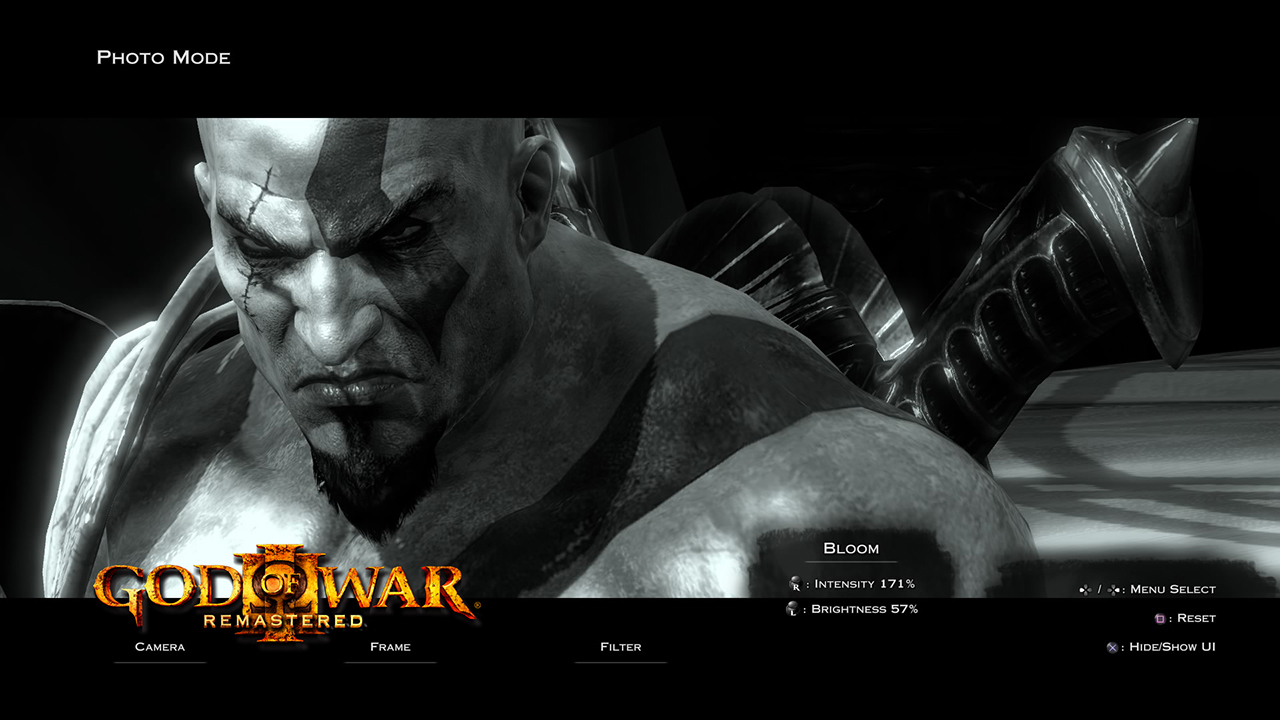
No capture made by this site is presented as a game test. The supplied PS4 image below is contextual and cannot demonstrate that F12 worked on a current PC package.
Sources: 2.3.0 release · 15 October 2026 UTC · Project README · Linux AppImage
Sources and method
Prepared by GOW III · PC Field Guide from the linked maintainer documentation, release records and attributed original reports, with AI assistance in research, writing and implementation. We have not played or independently benchmarked the game. Source checks describe the records read, not our own gameplay results.
- Project README · Keyboard and controller controlsDefault mappings; saved custom mappings can differ.
- 2.3.0 release · 15 October 2026 UTCHistorical texture/RADV/hybrid-GPU fixes, screenshot and vibration validation, and known issues.
- Project README · Linux AppImageExperimental native Linux route; launcher smoke tests are separate from gameplay.